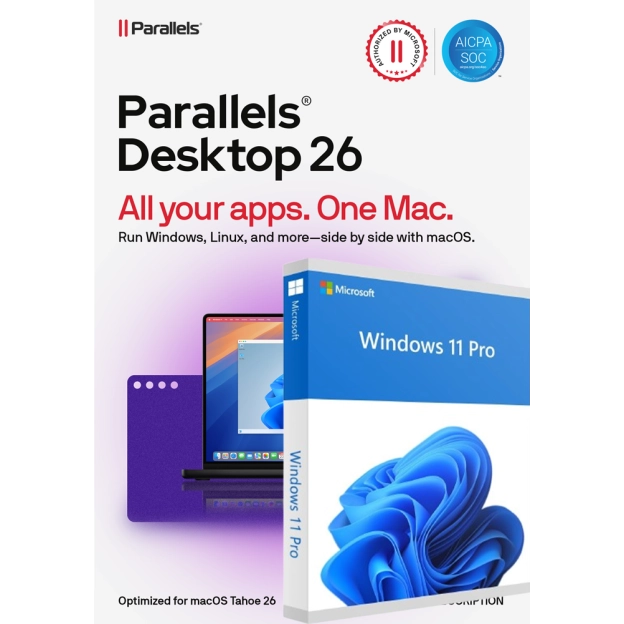

This is how to use Windows software on your Mac
If you are a Mac user sooner or later you’ll probably want to use a piece of software that was designed for Windows only. Frustrating isn’t it? You’ll used that software on Windows before, but you can’t run it on your Mac.
Well, if you want to use Windows software on your Mac you have several solutions available and one of the most popular options is to use virtualization software like Parallels Desktop. Parallels lets you run Windows software on your Mac without restarting your computer.
What is Parallels Desktop?
Parallels Desktop is virtualization software that allows you to run Windows, Linux, and other operating systems on your Mac. Parallels creates a virtual machine, which allows you to install and run Windows programs as if you were using a Windows PC.
What do I need to get started using Windows on my Mac?
First, you'll need to have a license for Parallels. In addition; you also need a license for Windows. Don’t buy a cheap OEM license; a retail license is needed for virtualization. Please refer to our Parallels + Windows bundles to buy it all together including step-by-step installation instructions.
After installing Parallels Desktop, you need to install Windows in a virtual machine; just use the wizard that guides you through installing Windows in a virtual machine. In addition; we – 2GO Software – also provide step by step instructions with your purchase.
How do I run Windows programs on my Mac?
After Parallels Desktop and Windows are installed on your virtual machine, you can start using Windows programs on your Mac. This is how:
- Launch Parallels : click the icon in your Applications folder or Dock.
- Launch Windows: To start Windows, click the Windows virtual machine icon in Parallels Desktop Control Center. A window opens with the Windows desktop.
- Start your Windows application: just double-click its icon on the Windows desktop. The program opens in a window on your Mac just like any other Mac application. You won't even notice there is Windows in th background supporting your software.
Parallels offers several settings that can be customized to optimized your Windows-on-Mac experience. You can adjust for example, the amount of memory allocated to the virtual machine, the amount of disk space available, and the number of processors used. We won't advice to change the defaults, but if you are a heavy user, you might want to tweak some things here.
How to Switch between Windows and Mac?
Running Windows programs on your Mac is just as easy as working on "normal" Mac applications. You can use consistency mode or full screen mode to switch between Windows and Mac. Consistency mode lets you run Windows programs on your Mac desktop, and full-screen mode lets you use Windows full-screen. If you minimalize the app, you scan simply switch to other applications. By doing that, you'll just combine working in your Windows and Mac applications at the same time.
Need to access local files on your Mac?
No need for rebooting or restarting at all! Probably the best thing is file sharing between Windows and Mac; Parallels Desktop lets you share files between Windows and Mac as if it is your local computer. To share a file, drag and drop it from your Mac to the Windows desktop or vice versa. That's great isn't it?!
Conclusion
Parallels Desktop is a great option for Mac users who need to run Windows programs. It provides a seamless integration between Windows and Mac, easy file sharing, and access to Windows-only programs. Ultimately, it's up to you to decide whether Parallels is the right solution for your needs.
Want to try if Parallels is the right solution for you? Then don’t buy from the Parallels webstore, but go for 2GO Software. They are a Parallels partner providing the original version of the Parallels software, but you’ll have a 30 days money back guarantee. If it’s not for you, you’ll just get your money back (terms and conditions apply).